What-If Tool
What-If Tool
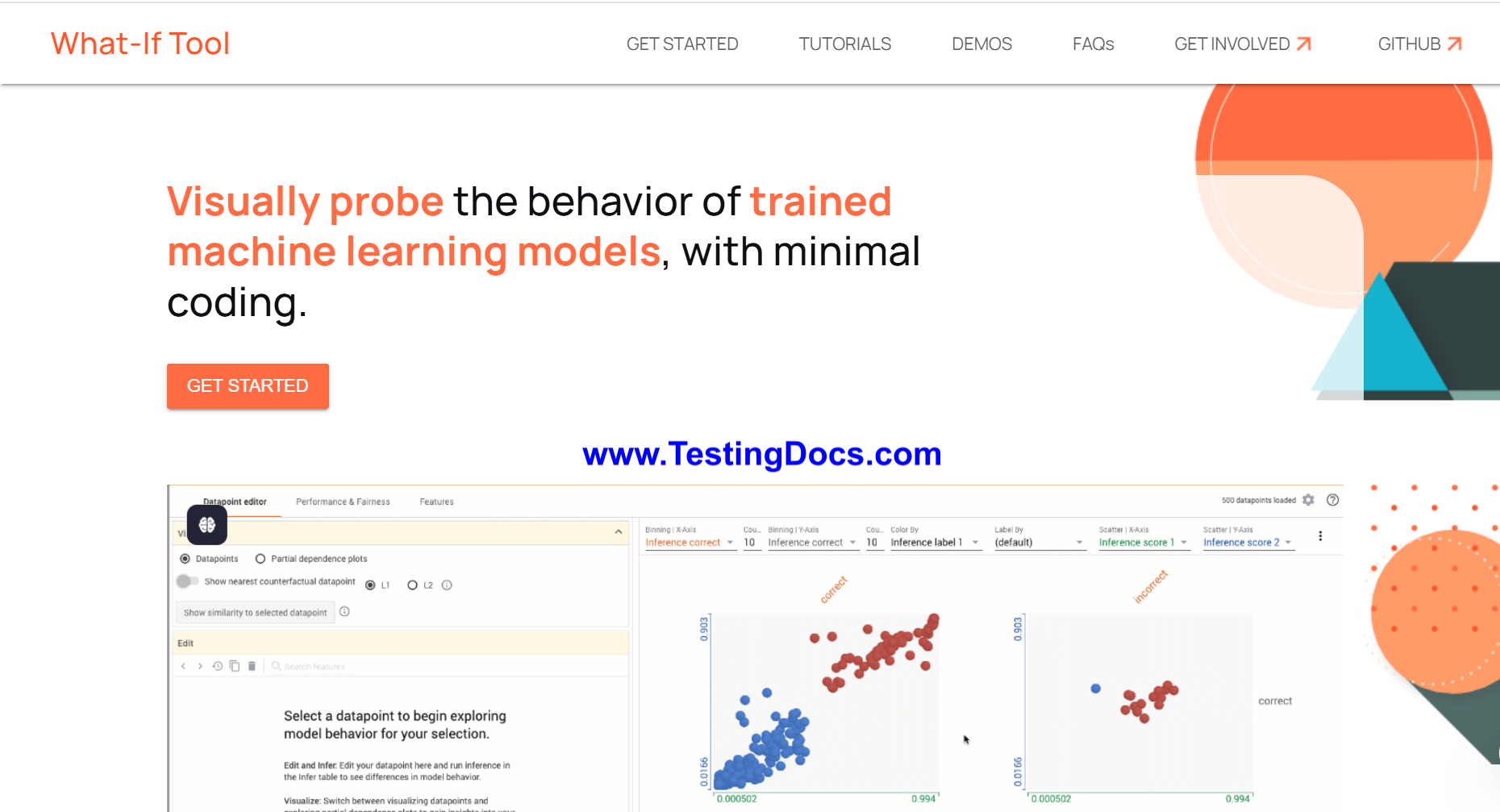
In this tutorial, you will learn about the What-If Tool. The What-If Tool is an interactive visual interface developed by Google for analyzing machine learning models. It helps users understand how their models behave with different inputs and conditions, making it easier to debug and explain AI models without writing code.
It is available as part of TensorBoard or can be used in a Jupyter Notebook environment using TensorFlow or other frameworks. The What-If Tool (WIT) provides a no-code environment for exploring and analyzing Machine Learning models. It allows users to visualize model performance, test model fairness, simulate counterfactuals (what-if scenarios), and understand feature importance. It is particularly useful for model debugging, ethical AI testing, and improving transparency in ML systems.
- Created by Google’s People + AI Research (PAIR) team.
- Works with TensorFlow, Scikit-learn, XGBoost, and other frameworks.
- Integrated into TensorBoard and supports standalone use in Colab or Jupyter Notebooks.
- Enables users to visually inspect predictions, edit inputs, and evaluate performance across slices of data.
- Supports fairness metrics to help assess bias in models.
How to use the tool?
Follow the steps to use the tool:
Install the Required Packages
Install TensorFlow and What-If Tool Python packages if not already installed:
$ pip install tensorflow witwidgetLoad Your Trained Model and Dataset
Prepare your trained ML model and sample dataset in your Jupyter Notebook or Colab.
Import the What-If Tool Widget
from witwidget.notebook.visualization import WitConfigBuilder
from witwidget.notebook.visualization import WitWidget
Configure the Widget
Create a configuration for the tool by specifying your dataset and model:
config_builder = WitConfigBuilder(data).set_model_type('classification')
wit = WitWidget(config_builder)
Visualize and Interact
The What-If Tool will now launch as an interactive widget. You can:
- Select individual data points and edit feature values to see how predictions change.
- Compare prediction results across multiple models.
- Use performance, fairness, and calibration plots for deeper insights.
Explore Fairness and Bias
Use the tool’s built-in fairness analysis to compare outcomes for different groups and detect potential model bias.
Simulate Counterfactuals
Modify individual features manually or use automatic generation to observe how small changes affect model decisions.