New Split View in Google Chrome
New Split View in Google Chrome
Chrome’s Split View is a desktop browser feature that allows you to view two web pages side-by-side within the same Chrome window. It helps reduce tab switching and improves multitasking.
What Split View Does
- Displays two tabs in a single Chrome window
- Allows easy comparison, research, and multitasking
- Includes a draggable divider to resize each view
How to Enable and Use Split View
- Open Google Chrome on your desktop
- Right-click on a tab in the tab bar
- Select “Add tab to new split view” or “Split view”
- Choose another tab or open a new website for the second pane
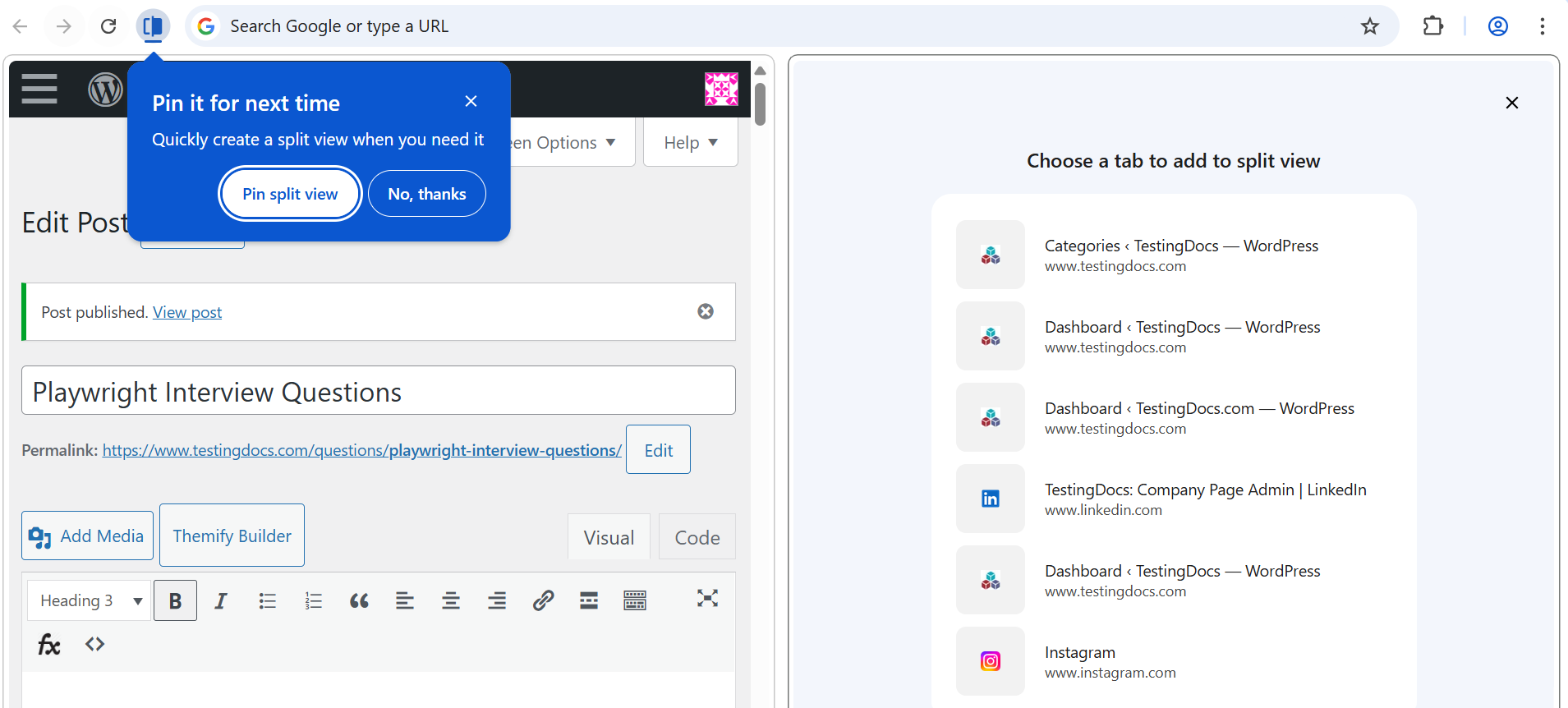
If you don’t see the option:
- Go to
chrome://flags - Search for Split View or Side-by-side
- Enable the flag and restart Chrome
Managing Split View
- Resize: Drag the vertical divider left or right
- Swap tabs: Use the split view menu or right-click options
- Exit: Close one pane or click the “X” on the divider
Common Use Cases
- Taking notes while researching
- Comparing products or prices
- Watching a video while browsing
- Reading documentation alongside your work
The feature is rolling out gradually and may not appear for all users yet. Its is available on Windows, macOS, and ChromeOS. Extensions can provide similar functionality if Split View is unavailable
Chrome Split View lets you work with two websites at once in a single window, making multitasking faster and more efficient.