Mirror a Physical Device in Android Studio
Mirror a Physical Device in Android Studio
Enable Developer Options on Your Device
- Open Settings
- Go to About Phone
- Tap Build Number 7 times
- Enter your phone PIN/password if prompted
- You’ll see: “You are now a developer!”
Enable USB Debugging
- Go to Settings → Developer Options
- Turn ON:
- USB Debugging
- Connect phone via USB
- On your phone, tap Allow USB debugging
Enable Wi-Fi Debugging
- Open Developer Options
- Enable:
- Wireless Debugging
- Tap Wireless Debugging → Pair device with QR code
Install Google USB Driver in Android Studio
- Open Android Studio
- Go to:
- Tools → SDK Manager
- Click SDK Tools tab
- Check:
- ✅ Google USB Driver
- Click Apply → OK
👉 This is required especially on Windows for USB detection
Connect Device via USB
- Connect your phone using USB cable
- Open Android Studio
- Go to:
- Device Manager
- Your device should appear automatically
- Click Run ▶ to mirror/run your app
Connect Device Using QR Code
On Android Studio:
- Open Device Manager
- Click Pair Devices Using Wi-Fi
- Choose:
- Pair using QR Code
- A QR code appears on screen
On Your Phone:
- Go to Developer Options → Wireless Debugging
- Tap Pair device with QR code
- Scan the QR from Android Studio
✅ Device should be connected.
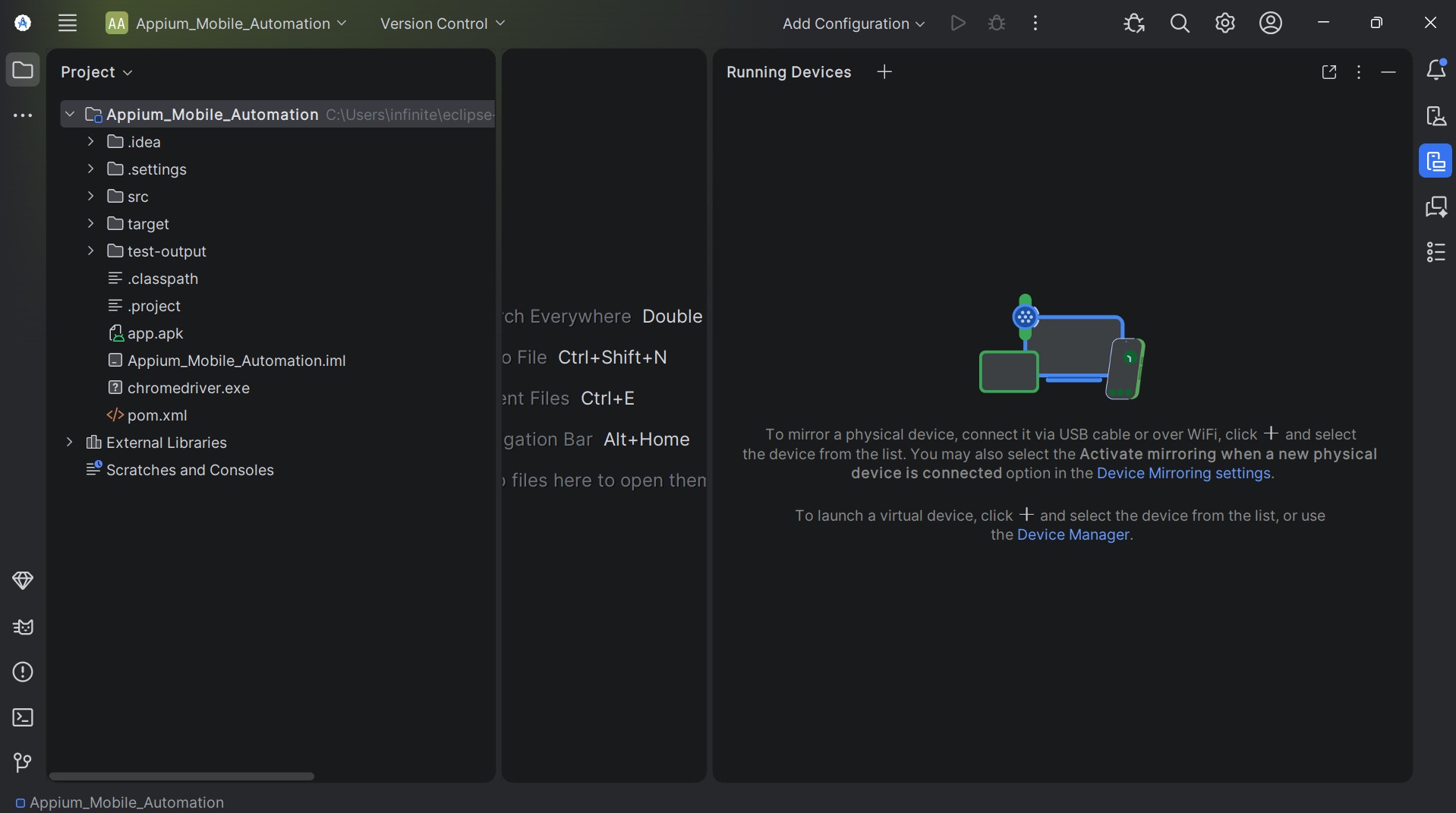
Mirror the Device Screen
Once connected:
- In Device Manager, click your device
- Click “Mirror Device” (or it opens automatically)
- You’ll see your phone screen inside Android Studio
👉 You can:
- Click/tap using mouse
- Type using keyboard
- Record screen