Add Test Case in TestRail
Add Test Case in TestRail
TestRail is a popular test management tool used by QA teams to organize, manage, and track software testing efforts. In this step-by-step guide, you will learn how to add Test Case to a TestRail project in a simple and easy way.
Prerequisites
- You should have access to a TestRail account.
- You must be a member of a TestRail project.
- The project should already be created.
Step-by-Step to Add Test Case in TestRail
Step 1: Login to TestRail
Open your browser and log in to your TestRail account using your username and password.
Step 2: Open the Project
After logging in, click on the desired Project from the Dashboard.
Step 3: Go to Test Cases Section
Click on the Test Cases tab from the top navigation menu.
Step 4: Select or Create a Section
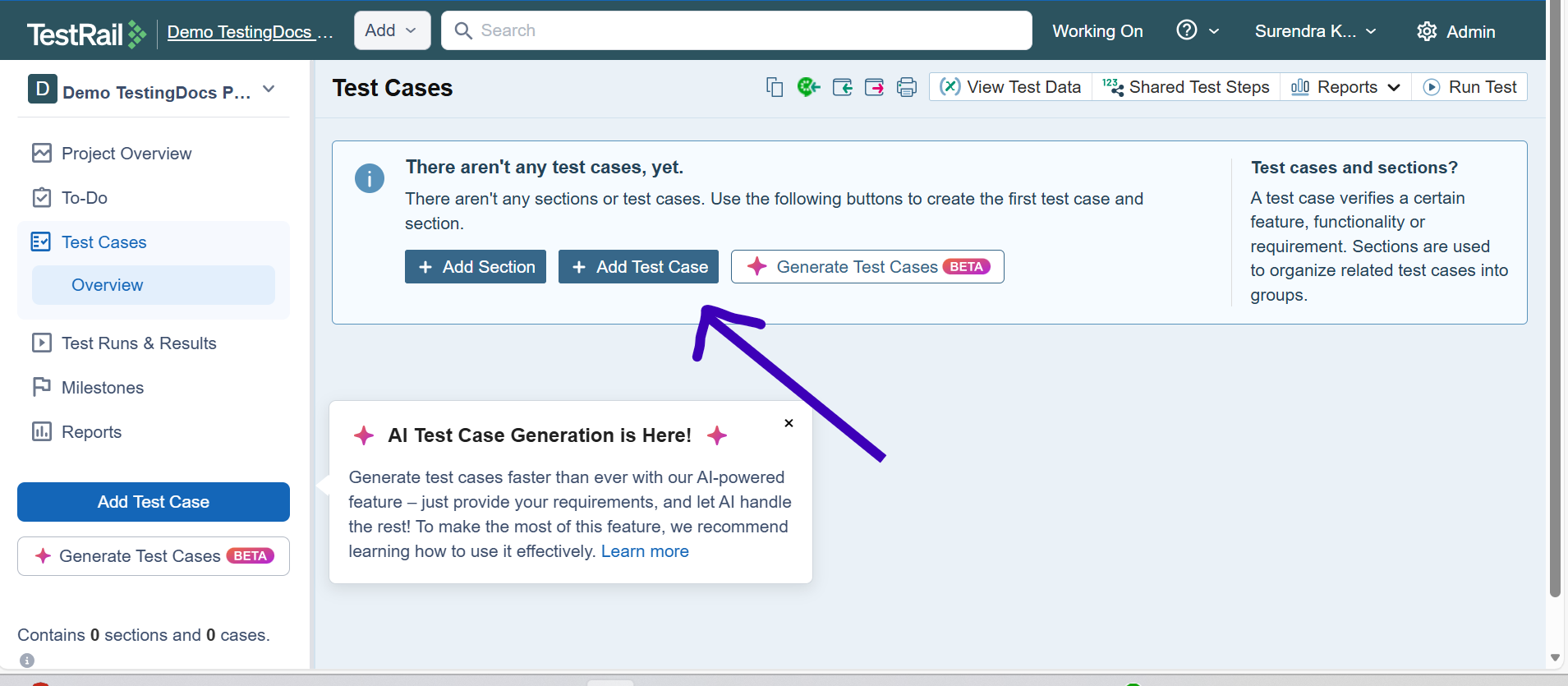
Test cases must be added inside a Section.
You can either:
- Select an existing section, or
- Click “Add Section” to create a new one.
Step 5: Click on “Add Case”
Inside the selected section, click the “Add Case” button.
Step 6: Enter Test Case Details
Fill in the required fields:
- Title – Short name of the test case.
- Preconditions – Any setup required before execution.
- Steps – Detailed step-by-step test procedure.
- Expected Result – Expected outcome after execution.
- Priority – Low, Medium, High, etc.
Step 7: Save the Test Case
After entering all required details, click the “Save Case” button.
Your test case will now be added successfully to the project.
Example of a Simple Test Case
Title: Verify Login with Valid Credentials
Precondition: User must be registered
Steps:
1. Navigate to Login page
2. Enter valid username
3. Enter valid password
4. Click Login button
Expected Result:
User should be logged in successfully.
Difference Between Test Case and Section
| Test Case | Section | |
|---|---|---|
| Definition | A detailed document that describes what to test and how to test it. | A folder-like container used to organize test cases. |
| Purpose | Validates a specific functionality of the application. | Groups related test cases together. |
| Contains | Title, Steps, Expected Results, Priority, etc. | Multiple test cases. |
| Example | Verify Login Functionality | Authentication Module |
| Hierarchy Level | Lowest level item executed during testing. | Higher-level organizational structure. |