Shell Scripting Tutorials for Beginners
Shell scripting takes the command line a step further by allowing you to automate repetitive tasks, create custom tools, and manage systems more efficiently. Instead of typing the same commands over and over, a shell script lets you bundle them together into a simple program that can run with a single command. Whether you’re managing files, monitoring processes, or deploying applications, shell scripting gives you the flexibility and control to get things done faster.
Pre-requisites
The per-requisites for learning shell scripting, especially if you’re a beginner are as follows:
- Basic Understanding of Operating Systems.
- Linux Terminal and Command Line Basics
- Knowledge of basic Linux/Unix commands
Ubuntu tutorials on this website:
A Linux terminal is a text-based interface that allows you to interact with your Linux operating system by typing commands instead of using graphical menus and buttons.

What is Shell Scripting?
A shell script is a text file containing a sequence of commands that the Linux/Unix shell (like bash, sh, or zsh) can execute. It automates repetitive tasks, makes system administration easier, and can even build complete programs.
Getting Started
Hello World Script
Create a script file.
Let’s call it as “hello.sh”. Use the touch command to create the file.
$ touch hello.sh
Open Vim with a filename
Open the file using the vim editor. Use the following command.
$ vim hello.sh
Enter Insert Mode to write code
-
Press
ito enter insert mode. -
Type your shell script code, for example:
#!/bin/bash
echo "Hello, World!"
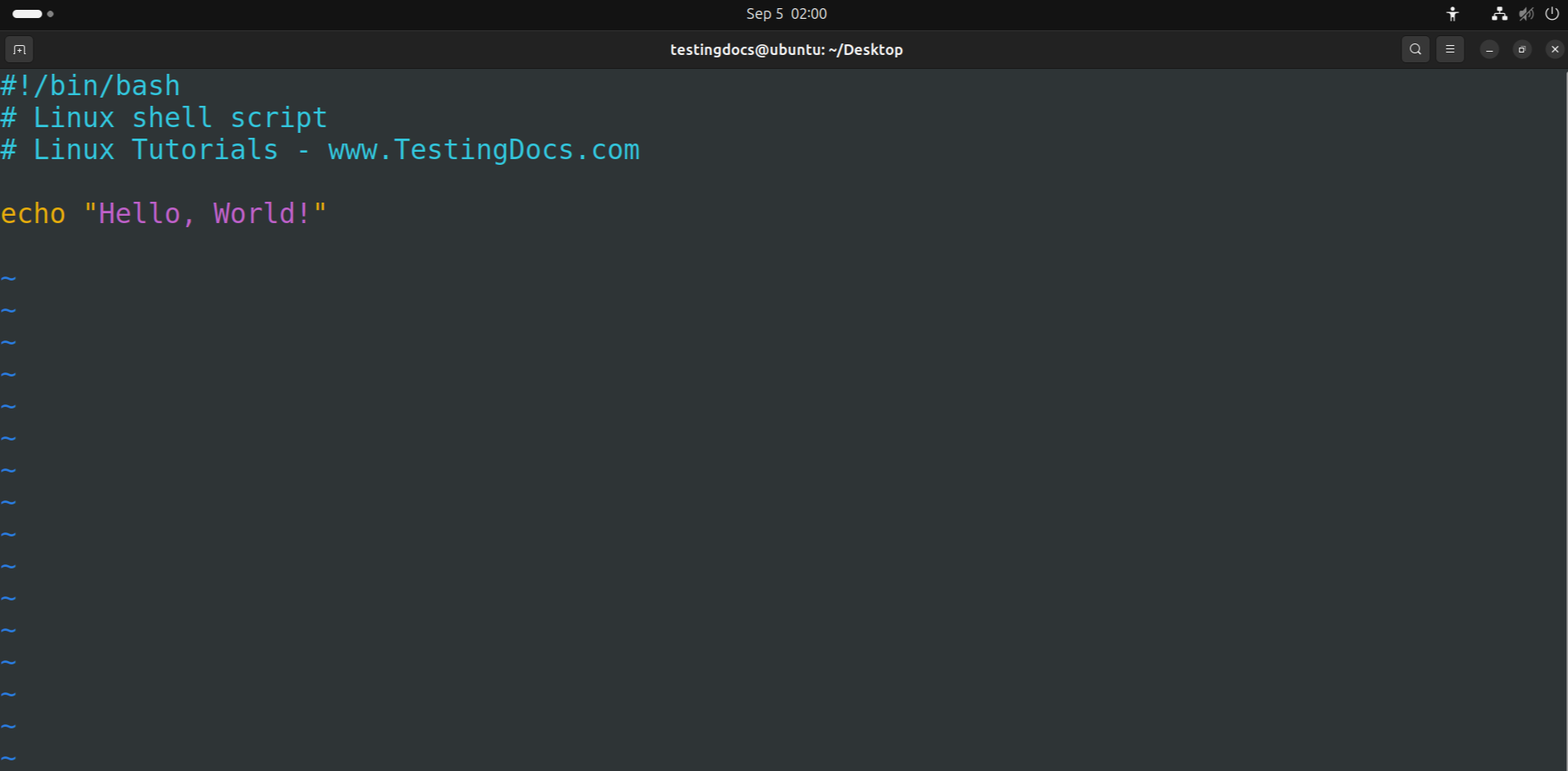
#!/bin/bash → Shebang line (tells system to use bash shell)
echo → Prints text on screen
Save the File
-
Press
Escto return to normal mode. -
Type the following command and press Enter:
Save and Exit
-
To save changes and quit Vim:
- :wq
Add Execute Permission
Issue the following command to give the execute permission to the script file.
$ chmod +x hello.sh
The chmod command in Linux is used to change file or directory permissions. It controls who can read (r), write (w), or execute (x) a file. Permissions can be set using symbolic mode (e.g., chmod u+x file.sh) or numeric mode (e.g., chmod 755 file.sh). This ensures secure access control for users, groups, and others.
More information on the command:
Run the script
Execute the script with the following command:
$ ./hello.sh
Basics of Shell Scripting
Variables
<em>#!/bin/bash
name="Alice"
echo "Hello $name"</em>
User Input
<em>#!/bin/bash
echo "Enter your name: "
read username
echo "Welcome, $username!"</em>
Conditional Statements
<em>#!/bin/bash
echo "Enter a number: "
read num
if [ $num -gt 10 ]; then
    echo "Number is greater than 10"
else
    echo "Number is 10 or less"
fi</em>
Loops
For Loop
<em>for i in 1 2 3 4 5
do
    echo "Number: $i"
done</em>
While Loop
<em>count=1
while [ $count -le 5 ]
do
    echo "Count = $count"
    ((count++))
done</em>
Functions
<em>#!/bin/bash
greet() {
    echo "Hello, $1"
}
greet "Naini"</em>
Command-line Arguments
In shell scripts, $1, $2, $3, … are called positional parameters. They represent the command line arguments (inputs) that are passed to the script when you run it.
-
$0→ The name of the script itself. -
$1→ The first argument. -
$2→ The second argument. -
$3→ The third argument, and so on. -
$#→ The number of arguments passed. -
$@or$*→ All arguments together.
Sample code
<em>#!/bin/bash
echo "Script name: $0"
echo "First argument: $1"
echo "Second argument: $2"
echo "All arguments: $@"</em>
Sample Run
./script.sh apple banana
Exit Status
<em>ls /notexist
echo "Exit status: $?"</em>