Docker Install on Ubuntu
Docker Install on Ubuntu
In this tutorial, we will learn the steps involved in setup a secure and stable Docker repository. This would make installing and updating Docker easy compared to the manual install process from the Debian packages.
There are many ways to install Docker on Ubuntu Linux.
- Setting up a repository with APT
- Manual Download and Install the Docker Debian packages
- Automation Scripts
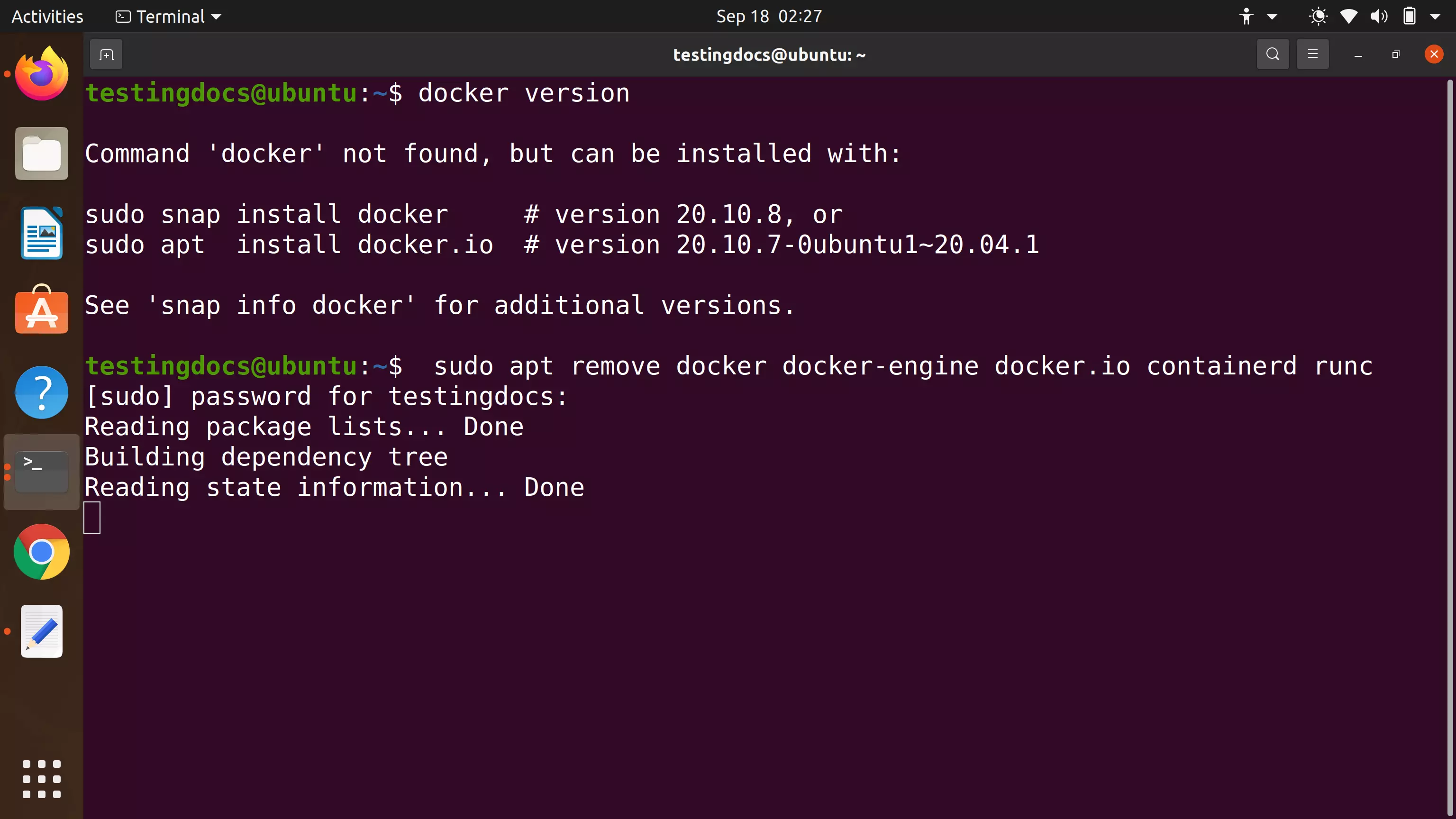
Check if Docker is installed on the machine. Remove older versions of the tools:
$ sudo apt remove docker docker-engine docker.io containerd runc
Docker Repository
Set up the Docker repository on HTTPS.
Launch Terminal and Issue the following command:
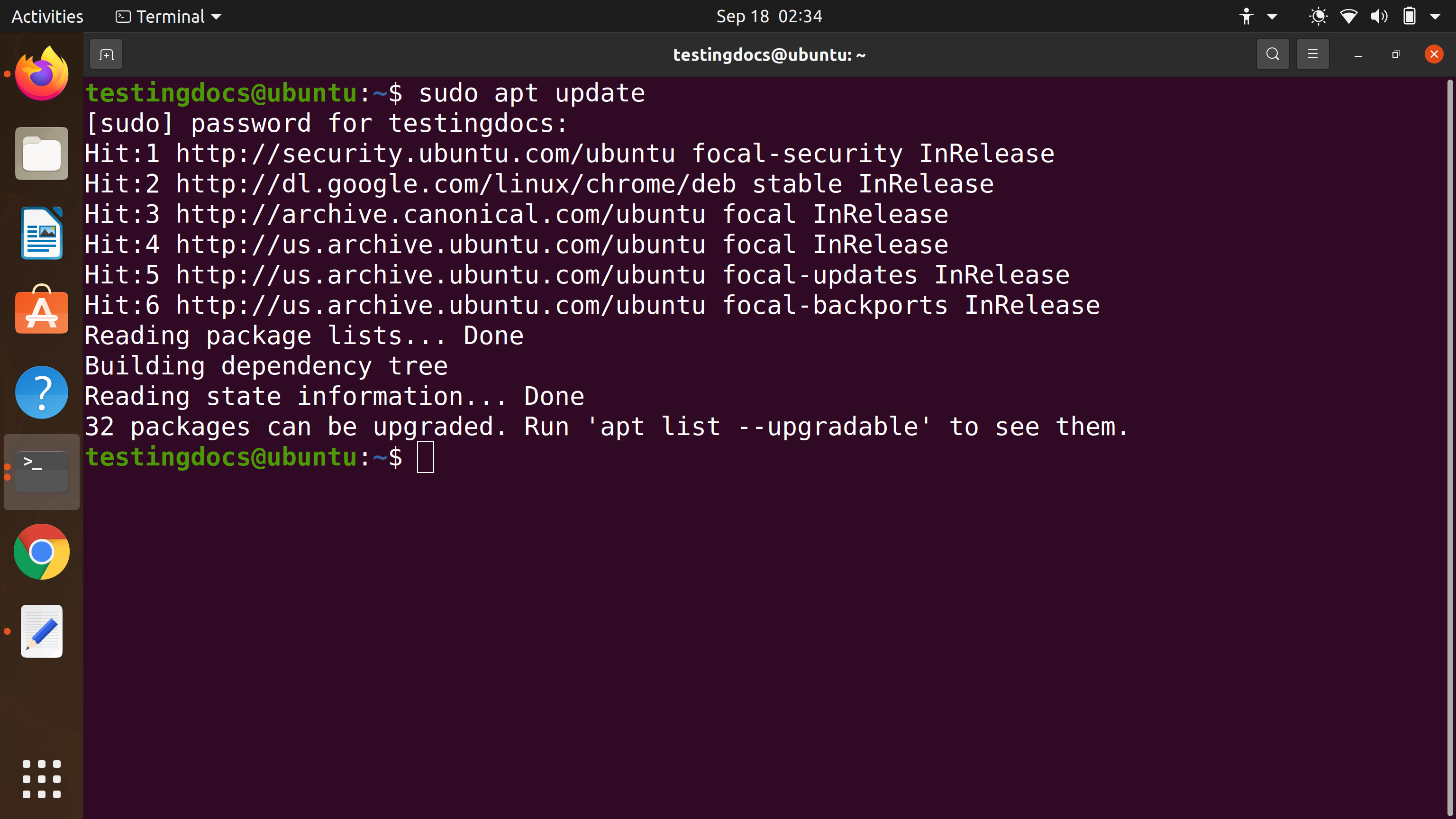
Refresh the apt index
$ sudo apt update
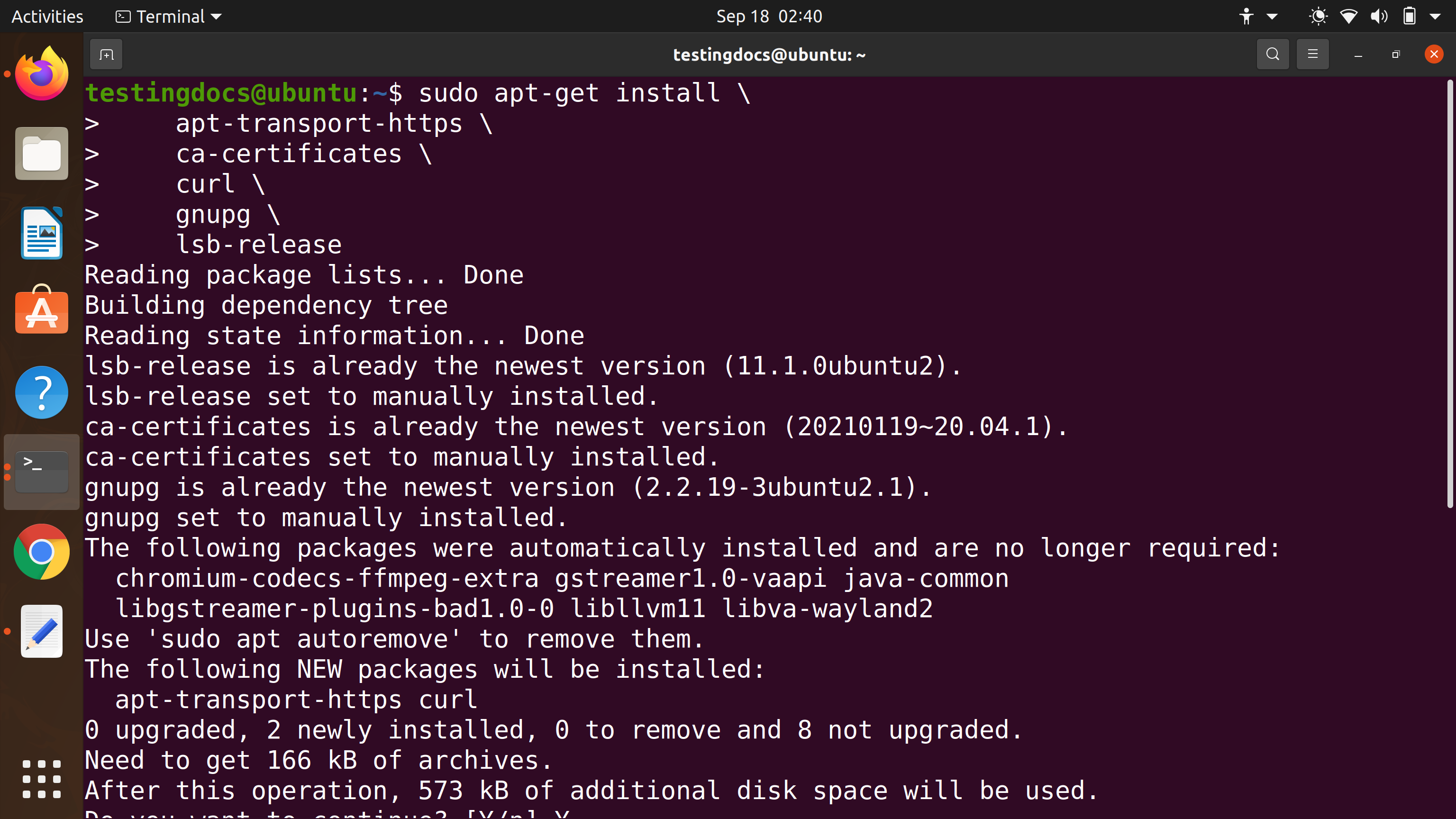
Install packages for apt to use HTTPS secure protocol
$ sudo apt install \
apt-transport-https \
ca-certificates \
curl \
gnupg \
lsb-release
Add Docker GPG Key and Setup Stable repository
$ curl -fsSL https://download.docker.com/linux/ubuntu/gpg | sudo gpg –dearmor -o /usr/share/keyrings/docker-archive-keyring.gpg
Check the machine architecture and choose the repository setup command. For example, 64-bit machine command:
$ echo \
“deb [arch=amd64 signed-by=/usr/share/keyrings/docker-archive-keyring.gpg] https://download.docker.com/linux/ubuntu \
$(lsb_release -cs) stable” | sudo tee /etc/apt/sources.list.d/docker.list > /dev/null
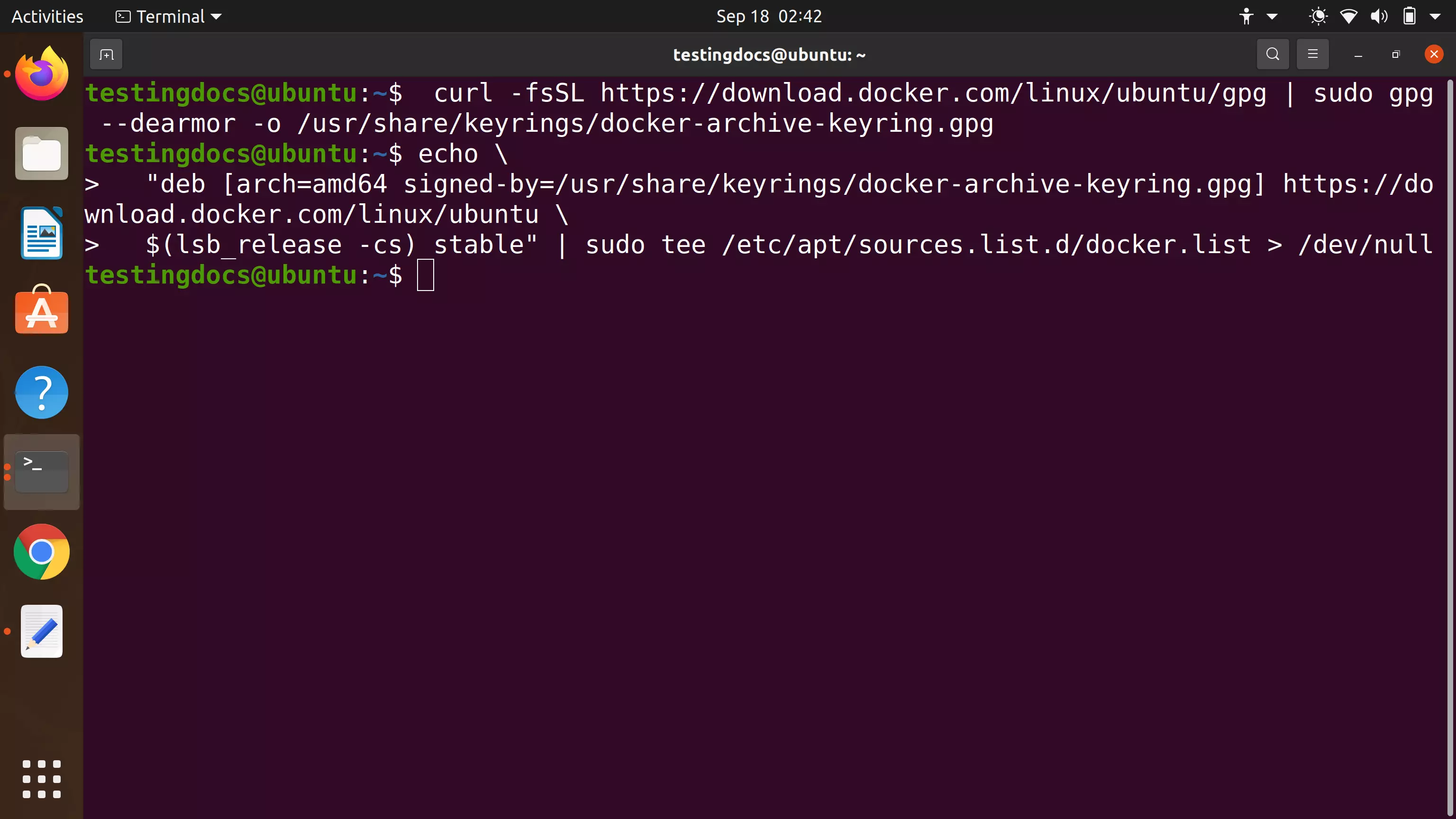
Docker Install
Update the apt repository index and issue the Docker install command.
$ sudo apt update
$ sudo apt install docker-ce docker-ce-cli containerd.io
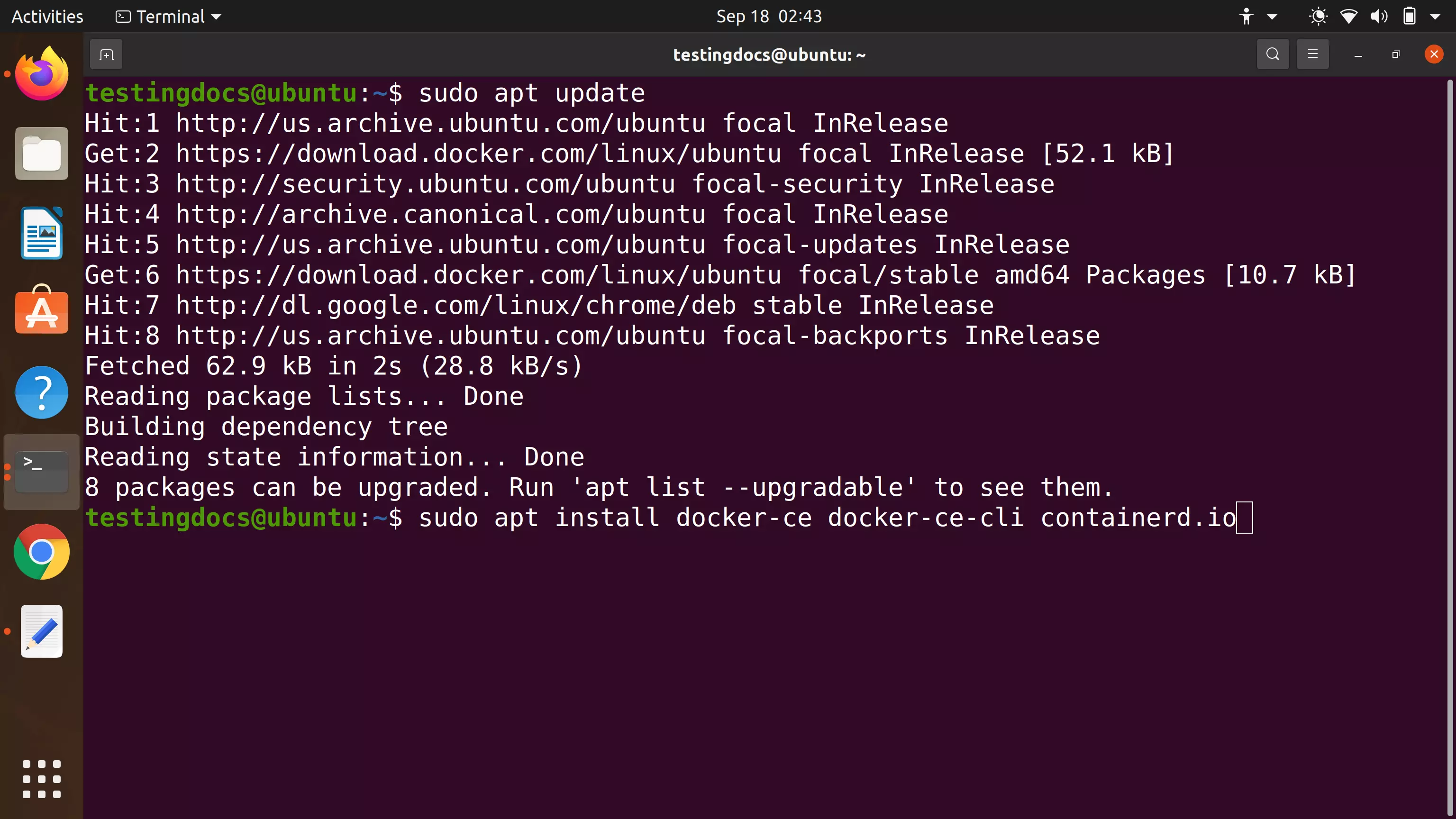
Check Version
To verify the installation, issue the docker –version command. On successful installation, the docker version should be displayed.
$ docker –version
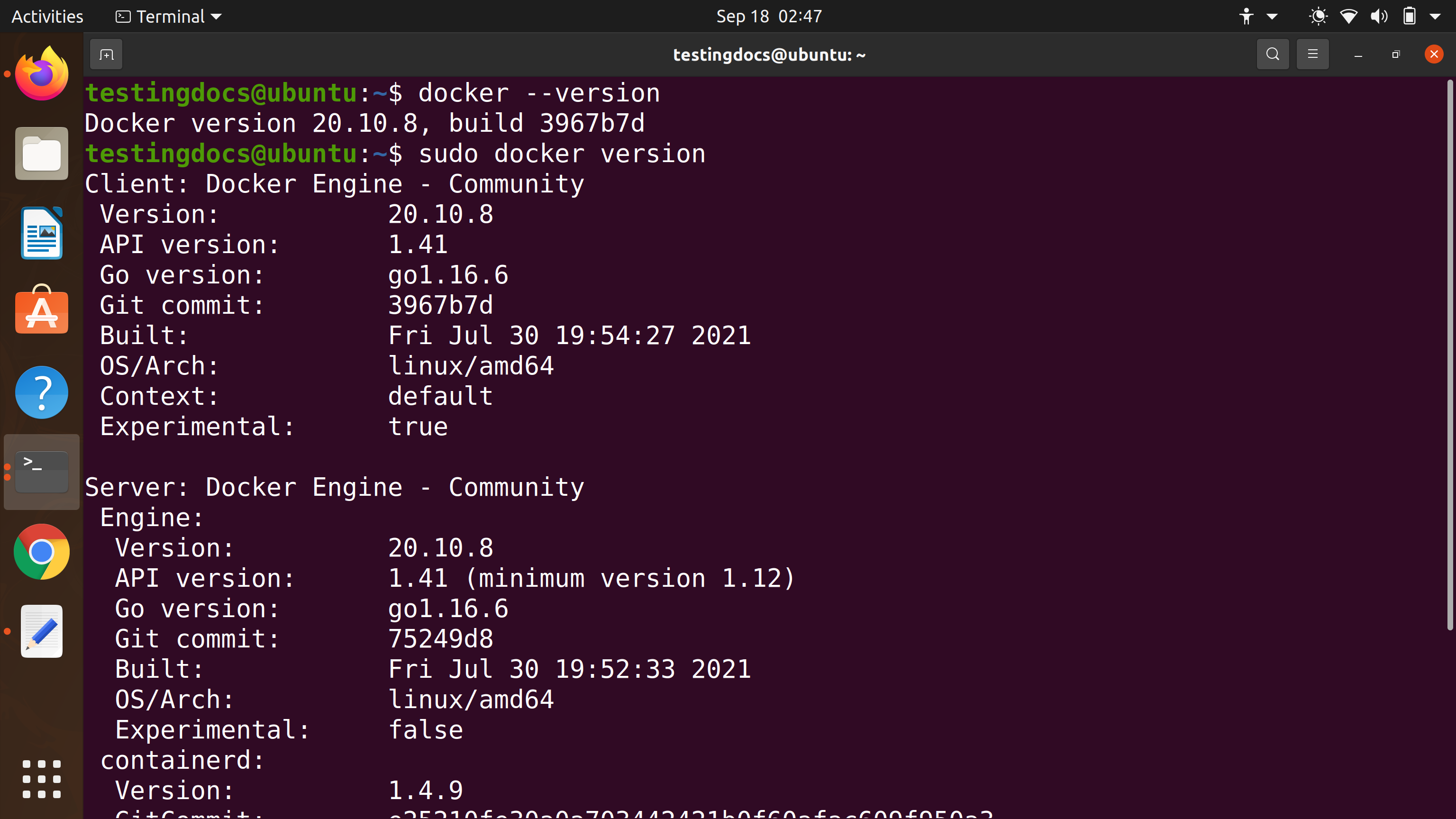
That’s it. We are done with the installation process of Docker on Ubuntu Linux.