Linux scp Command with Examples
Linux scp Command with Examples
The scp command in Linux stands for Secure Copy. It is used to securely copy files and directories between a local Linux system and a remote server. Unlike traditional file-copying methods, scp uses the SSH (Secure Shell) protocol, which encrypts data during transmission. This makes it useful for system administrators, developers, DevOps engineers, and students working with remote Linux machines.
Basic Syntax
The general syntax of the command is:
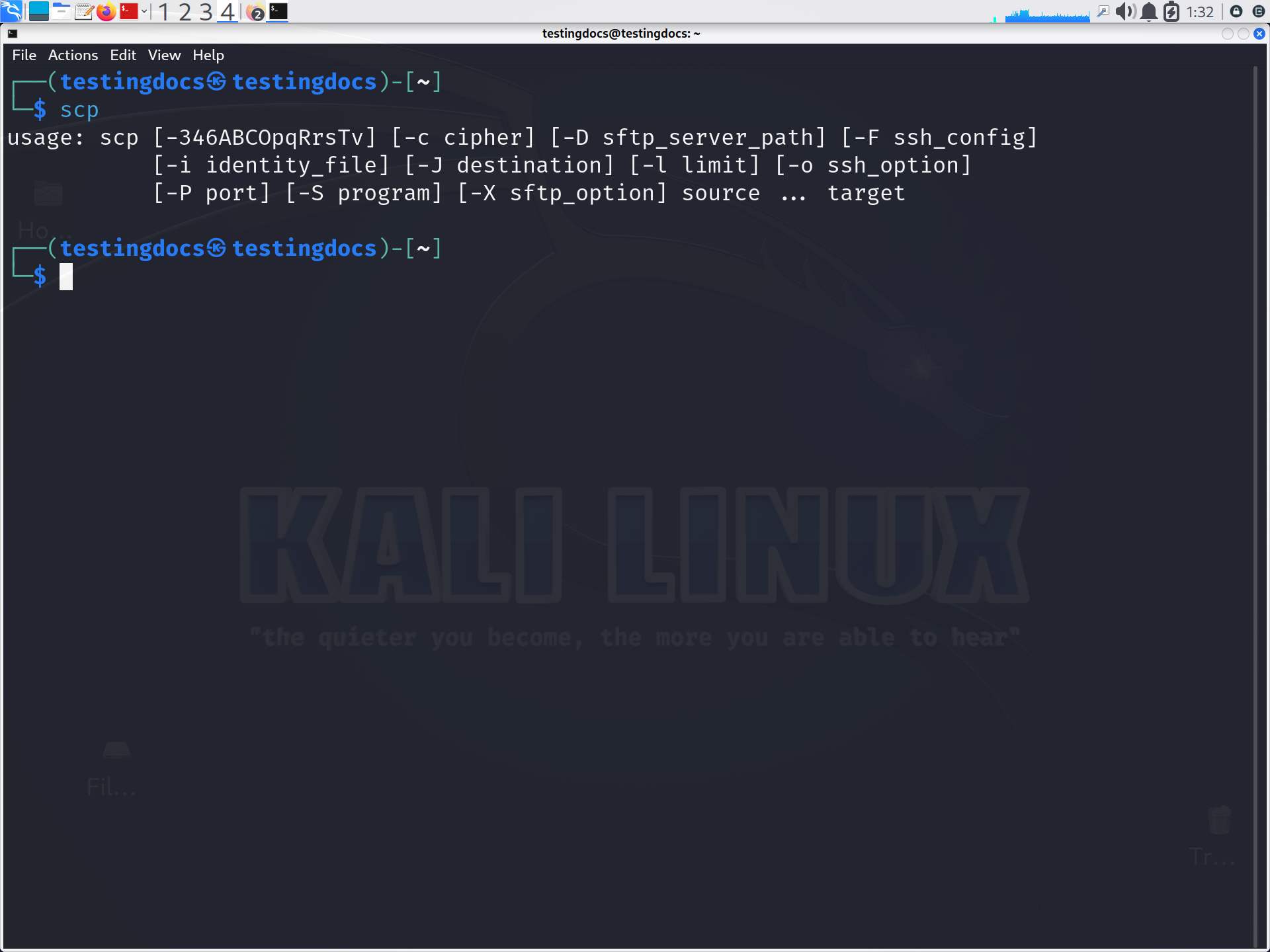
$ scp [options] source destinationThe source and destination can be either a local path or a remote path in the format username@hostname:/path.
Copy a Local File to a Remote Server
Suppose you have a file called report.txt and want to copy it to a remote server:
$ scp report.txt student@192.168.1.20:/home/student/You will normally be prompted for the remote user’s password unless SSH keys are configured. The file will then be transferred securely to the specified directory.
Copy a Remote File to Your Local System
You can also download a file from a remote Linux server:
$ scp student@192.168.1.20:/home/student/report.txt .The dot (.) represents the current local directory.
Copy an Entire Directory
To copy a directory and all its contents, use the -r option:
$ scp -r project/ student@192.168.1.20:/home/student/This recursively copies the project directory to the remote server.
Using a Different SSH Port
SSH commonly uses port 22, but a server may be configured to use another port. Use -P to specify it:
$ scp -P 2222 report.txt student@192.168.1.20:/home/student/Notice that -P is uppercase. It is different from the lowercase options used by some other commands.
Copy Between Two Remote Servers
$ scp can also transfer files between remote machines. For example:
$ scp user1@server1:/data/file.txt user2@server2:/backup/This can be useful when migrating files or moving data between servers.
Useful Options
The -r option copies directories recursively, -P specifies a custom SSH port, and -v enables verbose output for troubleshooting connection or authentication problems.
The scp command is a fundamental Linux networking and administration tool. It provides a simple way to move files securely without using graphical applications. Understanding scp also helps students build practical skills in SSH, remote administration, cloud servers, and DevOps workflows.